Customize Your User Interface
Change NXAccounts UI (your User Interface) Language
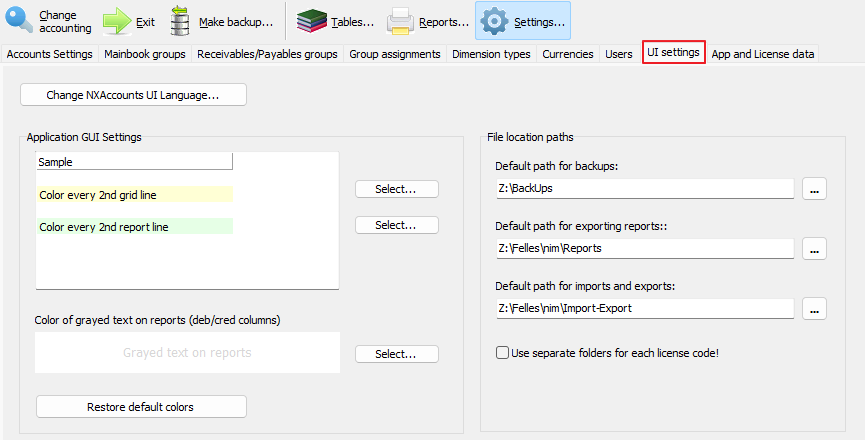
This is the same function as you have behind your Login form's App. Language button. You may choose between the 'native' and the 'foreign' languages defined in your license.
Application GUI settings
Color every 2nd grid line
For better readability then every second grid row's background is colored (pale yellow by default). By clicking the 'Select...' button at its right hand side you may alter this color, or even make it white to have no row coloring at all.
Color every 2nd report line
For better readability then every second report row's background is colored (light green by default). By clicking the 'Select...' button at its right hand side you may alter the color, or even make it white to have no row coloring at all.
Grayed columns on reports
Some less interesting columns (basically the accumulated debit and credit ones) are displayed in light gray color for less focus in some reports. By clicking the 'Select...' button at its right hand side you may alter the color, or even make it black to regain the normal font color.
Restore default colors
By clicking this button you may restore your color selections to their default values.
File Location Paths
To maintain order and structure and save time when selecting where to save and load your the application's data, you may enter default folder locations for your most used exports from the application. These folders are by default found under the new BushSoft subfolder in your Documents folder.
Backups
From now you always know where to find your list of backup files
Reports
From now you always know where to find your list of exported NXAccounts reports
Imports and Exports
From now you always know where to find your imports and export files (saved voucher transactions, account plan templates, exported budgets etc).
Checkbox: Use separate subfolders for each license code!
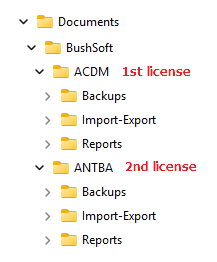
If you are using several licenses, you may check this box to insert a new folder level named as your license below your BushSoft folder. In this case your folder hierarchy will look like this in Windows File Explorer: