Add or Edit Budgets
To learn more about this app's basic functions when editing data, please click here ...
Introduction
Budget records are created and maintained by COMBINING your DIMENSIONS. You can have separate budgets for, say, project 'Agriculture' in department 'Hyde Park', and for 'Education' in 'Sahara' according to your different dimension names. Make sure to create a good (abbreviated) description as Budget Name so it is easily understandable which dimensions it accumulates.
Important about using the budget feature
There is a setting in Settings / Account Settings / Right panel which governs if dimension combinations WITH NO BUDGET are allowed or not. If you allow this, then expenses or incomes posted with no budget will ONLY BE INCLUDED in unfiltered (grand total or all dimensions) reports. So please beware of this. Most users select 'Deny transactions with no budget'.
The most important setting below is the Upper right panel settings. This budget will sort out and accumulate ONLY the result account transactions matching exactly your Dimension combination for its reports!
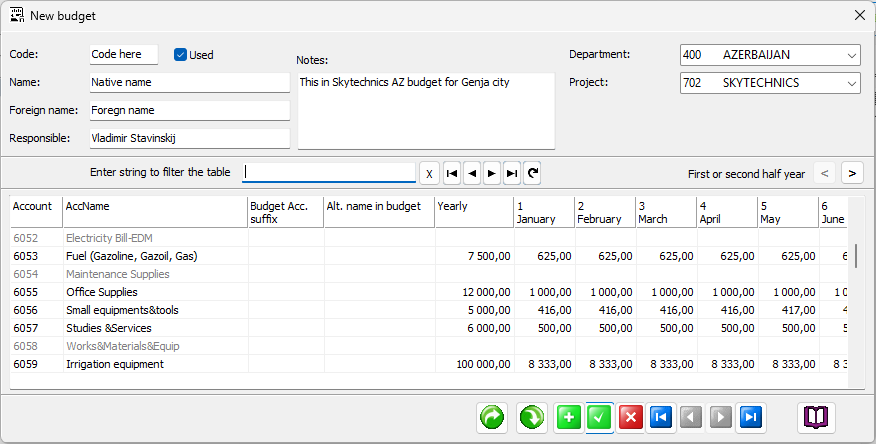
Budget code
Here you may enter whatever ID you desire, alphanumeric or digits, but duplicates are not allowed
Budget name
Enter a descriptive native name for the current budget record
Budget foreign name
Same as above, but in the account names' foreign language
Responsible
Enter the name of the person who is responsible for this current budget
Notes
Here you may enter important information about what is in included or persons involved etc.
Dimension combination for THIS budget (upper right panel)
Here you HAVE TO select the combination of dimension(s) you want for this budget.
You MAY leave some dimensions unselected, but we strongly advice NOT to do that..
Panel above table list
If you need to locate a certain account you may start entering its name in the filter box. The 'First or second half year' swaps the table's month columns to first or second half year.
Table - Account Suffix
Here you may enter an account number suffix for this budget account.
Table - Alternate name
Here you may enter an alternative account name or description for this particular account.
Table - Yearly column
Here you enter the yearly gross budget amount. The app will automatically distribute this yearly amount to each month of the year. If you want to manually distribute the yearly amounts for certain accounts (for example when purchasing a car) make sure the Yearly amount is zero before you begin and the you enter the monthly amount(s) manually.
Export - Import buttons. Here you may Save and Load a budget just like you do with vouchers. Remember to make sure when importing that all the affected accounts and dimensions exist in the receiving accounting!!
Save your work
Make sure you save your work before quitting the form...